Wordpress SEO
SEO: How To Change The Title Tag In WordPress


TL;DR:
To change the title tag of an individual WordPress page or post, you’ll normally use an SEO plugin such as Yoast SEO, All in One SEO or Rank Math. These let you set a custom SEO title rather than relying on the default title generated by WordPress. This guide shows where to find the title setting in each plugin and explains the difference between your WordPress page title, SEO title and site title.
Why you should be able to change title tags in WordPress
As a WordPress SEO Consultant I would say one of the most important things you must be able to do on the platform is update your title tags.
And that doesn’t just apply to WordPress, it is probably the most fundamental, important element of a web page across any platform.
So What Is A Title Tag?
A title tag is an HTML element that specifies the title of a web page. It appears in the page’s source code inside the <head> section, like this:
<title>Example Title Tag</title>
In WordPress, you’ll also commonly see the title tag referred to as the SEO title, particularly if you’re using an SEO plugin such as Yoast SEO, All in One SEO or Rank Math.
The title tag can be used by search engines as the clickable headline for your page in the search results. It also appears in your browser tab and helps browsers and search engines identify what the page is about.
What Is The SEO Title In WordPress?
The SEO title in WordPress is the title you want search engines to associate with a particular page or post. In practical terms, when an SEO plugin gives you an “SEO title” field, you’re using it to control the page’s HTML title tag.
This is different from the page title you enter at the top of the WordPress editor.
Your page title will usually appear as the main heading (H1) visitors see on the page, whereas your SEO title appears in the page’s <title> element and may be used as the title shown in Google.
For example:
Page title / H1: How To Change The Title Tag In WordPress
SEO title / title tag: How To Change A Title Tag In WordPress | Dave Ashworth
They can be the same, but they don’t have to be.
It’s also worth distinguishing both of these from your WordPress Site Title, which is the name of the overall website rather than the SEO title of an individual page or post.
Where Is The SEO Title In WordPress?
Where you find the SEO title depends on how your WordPress website is configured.
If you’re using an SEO plugin such as Yoast SEO, All in One SEO or Rank Math, you’ll normally find an SEO title setting when editing an individual page or post.
You don’t usually need to manually add a <title> tag to the HTML of every WordPress page. WordPress generates the title element, while an SEO plugin gives you more control over what that title contains on individual URLs.
I’ll show you exactly where to find and change it in each of the major SEO plugins below.
And Why Are Title Tags Important For SEO?
Title tags are important for SEO because they help search engines and users understand what a page is about.
They are a useful relevance signal, so a clear title that accurately describes the page and naturally includes its primary topic can help search engines understand which searches the page is relevant to.
Title tags are also closely associated with how pages appear in search results. Google can use the <title> element when generating the clickable title link for a result, although it may sometimes display a different title based on the page and the search.

That makes a good SEO title important for both relevance and clicks: it should accurately describe the content while giving somebody a reason to choose your result.
Title tags also appear in browser tabs and can help users distinguish between pages when they have several tabs open.
Rather than treating 50–60 characters as a strict limit, aim to make the title concise, descriptive and useful. Longer titles can be truncated or rewritten in search results, so put the most important information towards the beginning.
Each important page should also have a descriptive title that reflects its own content rather than reusing the same generic title across multiple pages.
How To Modify The Title Tag in WordPress
Remarkably, WordPress doesn’t allow you to have a custom title for each post or page you create – just for your home page. On other pages it uses the post or page name as the title tag.
If you only want to amend the home page title tag (maybe you’re site is a one pager), then go to Settings -> General and amend the site title box as follows:

However, if you want to do this across all your pages there are plugins that will add this functionality for you.
Yoast SEO:
Yoast SEO is a popular WordPress SEO plugin with over 10 million active installations. It provides an SEO analysis tool that rates pages based on factors like keyword usage, content length, and readability. The plugin allows users to set custom title tags, meta descriptions, and Open Graph tags for each post and page. It also includes features such as XML sitemap generation, canonical URLs, breadcrumbs, and a redirect manager. Yoast SEO can also integrate with Google Search Console to help users track their website’s search performance.
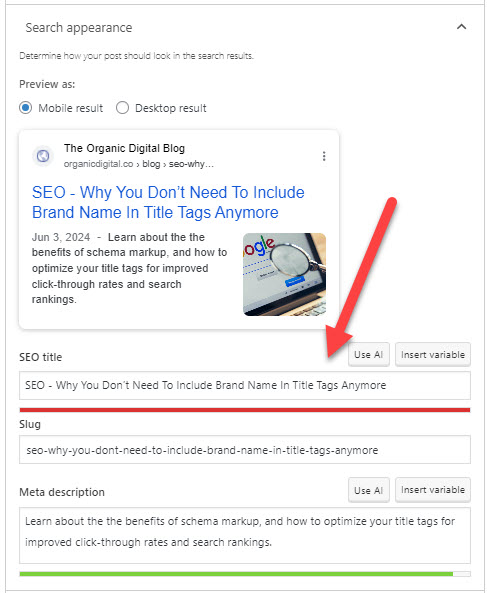
Once installed, go to the page or post you wish to edit and scroll to the bottom where you will find the option to edit your title tag and meta description:
All in One SEO Pack:
All in One SEO Pack has over 3 million active installations. Similar to Yoast It enables users to set custom title tags, meta descriptions, keywords, and Open Graph tags for each post and page. The plugin generates XML sitemaps and notifies search engines of site updates, helping to improve crawlability and indexing. It also supports Google AMP pages, Schema markup, and local SEO features. If you are an online store it also provides basic SEO functionality for using WooCommerce.
As with Yoast, go to the page or post you wish to edit and scroll to the bottom where you will find the option to edit your title tag and meta description:

Rank Math:
Rank Math is a fast-growing WordPress SEO plugin with over 2 million active installations. It offers a user-friendly setup wizard and an SEO analysis feature that provides suggestions for improving posts and pages. As is standard it allows you to set custom title tags, meta descriptions, Open Graph tags, and Schema markup for each post and page. It supports XML sitemaps, Google Search Console integration, local SEO, WooCommerce SEO, and breadcrumbs. Additionally, it includes a 404 error monitor, redirect manager, and rich snippet previews directly in the WordPress editor, making it a comprehensive SEO solution.
Once installed, you will see an icon at the top right of the screen which you click to open the panel, and then click on “Edit Snippet”

There, you will find the title tag ready for you to make you amends.

And that’s it, dead simple.
Other SEO plugins are available.

categories
- Analytics Insights
- Crawl Rate Insights
- Ecommerce SEO Insights
- International SEO Insights
- Keyword Research Insights
- Local SEO Insights
- Migrations Insights
- News Insights
- On Page SEO Insights
- Performance Analysis Insights
- SEO Audits Insights
- Site Speed Insights
- Structured Data Insights
- Tag Manager Insights
- Wordpress SEO Insights
latest posts
How To: Track GA4 AI Assistant Traffic, Including Historical Data

A Rough Guide To: LLMS.txt - What It Is & How To Create One

How To: Build SEO Content Hubs for Topical Authority

Case Study: Do Keywords in URLs Help SEO Rankings?

How To: Track Google Business Profile Traffic in GA4

get in touch
If you need some expert website optimisation and configuration, want to find out more, or even just have a question, fill in the form below as I will always be happy to help