Crawl Rate - SEO Audits
How To: Fix Google Search Console Page Indexing Issues


TL;DR:
If Google Search Console says pages aren’t indexed, don’t assume every URL needs fixing. Some exclusions, including redirects, alternate canonical URLs, deliberately noindexed pages and genuine 404s, can be completely normal. Start by checking whether the affected URL is one you actually want indexed, then use the reported reason and URL Inspection to determine whether Google can crawl, render and index the page. This guide explains the most common Search Console page indexing issues, what each one means and what you should do about it.
Why aren’t my pages indexed by Google?
There are lots of reasons why Google may not index a page, and the first thing to understand is that a page appearing under “Why pages aren’t indexed” doesn’t automatically mean something is broken.
Google doesn’t need to index every URL it discovers. Redirecting URLs, duplicate pages, alternate canonical URLs, intentionally noindexed pages and deleted URLs may all be excluded for perfectly valid reasons.
The question I ask when reviewing the Page indexing report isn’t simply “How do I get all these pages indexed?”
It’s “Should this URL be indexed?”
If the answer is yes, you then need to establish what’s preventing Google from indexing it. Common causes include:
- Google can’t crawl or access the page
- the page contains a
noindexdirective - Google considers the page a duplicate
- the URL redirects elsewhere
- the server is returning an error
- Google has discovered the URL but hasn’t crawled it
- Google has crawled the page but hasn’t chosen to index it
The reason shown in Search Console tells you which of those problems you need to investigate.
The “New Reason Preventing Your Pages From Being Indexed” Email
If you’re set up in Google Search Console, you’ve probably received an email with the subject “New reason preventing your pages from being indexed” at some point.
I get these emails forwarded to me regularly by clients who are understandably concerned that Google has found a serious problem with their website.
Most of the time, however, the notification doesn’t automatically mean something is wrong.
It means Google has identified URLs that fall into a particular non-indexed category. That might be something requiring attention, but it could equally be expected behaviour, such as a redirect, an alternate canonical URL, a deliberately noindexed page or a URL that no longer exists.
Here are a few examples of the Search Console indexing emails I’ve received:
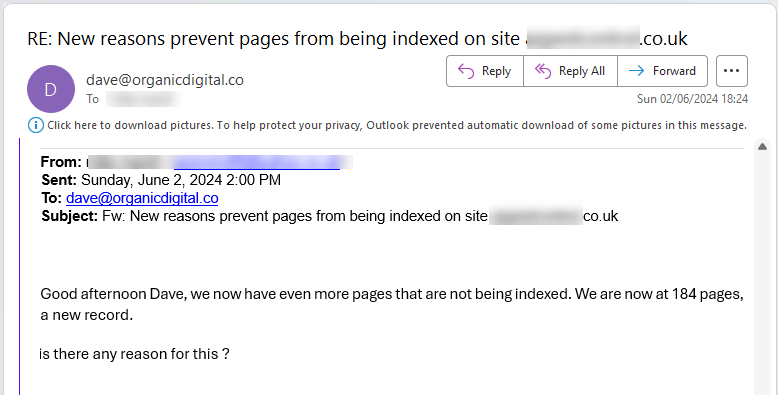


The important thing isn’t the email itself, but which indexing reason Google is reporting and which URLs are affected.
That’s what you need to investigate before deciding whether anything actually needs fixing.
How to diagnose a page that isn’t indexed
If an important page isn’t indexed, the first thing to establish is why Google has excluded it and whether the URL should actually be indexed in the first place.
I generally work through indexing problems in this order:
- Inspect the URL in Google Search Console and check the indexing reason being reported.
- Decide whether the URL should be indexed. Redirects, duplicate URLs, deliberately noindexed pages and genuine 404s often shouldn’t be.
- Test the live URL to check whether Google can currently access and crawl it.
- Check the HTTP response for redirects, 4xx errors or server errors.
- Check indexing directives, including
noindexand robots.txt. - Check the canonical URL and whether Google has selected a different canonical.
- Check how Google discovers the page, including internal links and your XML sitemap.
- If Google can crawl the page but still isn’t indexing it, look at the page itself and whether it’s sufficiently useful, unique and worthwhile to include in the index.
Once you understand the reason, you can decide whether there’s actually something to fix. That’s an important distinction because many URLs listed under “Why pages aren’t indexed” are there for perfectly legitimate reasons.
Google Search Console Page Indexing Report
The Page indexing report groups non-indexed URLs according to the reason Google hasn’t included them in its index.
You can click into each reason to see example URLs affected by that status.
The important thing is not to work through the report trying to make every exclusion disappear. Instead, look at the affected URLs and determine whether the status is expected or whether it’s preventing a page you actually want indexed from appearing in Google.
Let’s go through the most common reasons, what they mean, whether you need to worry about them and what to do when they genuinely need fixing.

Not found (404)
This status means Google tried to access the URL and the server returned a 404 response because the page doesn’t exist.
Is it a problem?
Not necessarily. If you’ve deliberately removed a page and there’s no suitable replacement, returning a 404 is perfectly normal. You don’t need to redirect every deleted URL simply because Search Console reports it as not indexed.
What should you check?
Check where the URL came from and whether it represents a page that should still exist. In particular, look for broken internal links, incorrect sitemap URLs, mistyped links or pages that have accidentally been removed.
How do you fix it?
If the page should exist, restore it or correct whatever is causing the 404.
If the content has permanently moved and there’s a genuinely relevant replacement, use a 301 redirect to the new URL.
If the page has deliberately been removed and there’s no appropriate replacement, leave it returning 404 and remove any internal links or sitemap references pointing to it.
Soft 404
This means Google believes a page effectively behaves like a missing or unavailable page, even though the server doesn’t return a normal 404 response.
A common example is a deleted product page that displays a “Product no longer available” message while still returning a 200 OK response. Google may also classify pages with very little useful content as soft 404s.
Is it a problem?
It depends on the page. If an important page that should be indexed is being treated as a soft 404, then yes, you need to investigate why.
If the page genuinely no longer exists, the problem may simply be that the server is returning the wrong HTTP status.
What should you check?
Check the HTTP response code, the amount of useful content on the page and whether the page actually represents something that should exist and be indexed.
How do you fix it?
If the page no longer exists and there’s no appropriate replacement, return a genuine 404 or 410 response.
If the page has moved, redirect it to the relevant replacement.
If the page should exist and be indexed, make sure it returns a 200 response and contains enough useful content for Google to recognise it as a genuine page rather than effectively an error page.
On this point, here’s some insights from Google’s Gary Illyes as to why you should resolve them.
Duplicate, Google chose different canonical than user
This means you’ve specified one URL as the canonical version of a page, but Google has decided that another URL is a better canonical.
For example, an ecommerce product might be accessible through several URLs:
https://www.example.com/product-page
https://www.example.com/category-1/product-page
https://www.example.com/category-2/product-page
You might canonicalise all three to the first URL, but Google can still choose a different canonical if other signals suggest another URL should be treated as the primary version.
Is it a problem?
Potentially. If Google has selected the URL you actually want indexed, there’s nothing to worry about. If Google is consistently choosing the wrong version, you need to investigate why your canonical signals aren’t clear enough.
What should you check?
Check the canonical tags on all duplicate versions, internal links, XML sitemap URLs, redirects and whether the preferred canonical returns a 200 response and is itself indexable.
Also check whether the supposedly duplicate pages really are equivalent. A canonical isn’t simply an instruction you can use to force Google to index whichever URL you prefer.
How do you fix it?
Make your signals consistent. Link internally to the preferred URL, include that URL in your XML sitemap, use consistent canonical tags and avoid sending conflicting signals about which version Google should index.
Then use URL Inspection in Search Console to compare your user-declared canonical with Google’s selected canonical.
Duplicate without user-selected canonical
This means Google has found multiple pages containing substantially the same content, but you haven’t specified which URL should be treated as the canonical version.
Google has therefore selected a canonical itself and excluded the other duplicate URLs from the index.
This is common on ecommerce websites where filtering, sorting and other URL parameters can create multiple versions of essentially the same page, for example:
https://www.example.com/products?filter=color-red
https://www.example.com/products?filter=size-medium
https://www.example.com/products?sort=price-asc
Is it a problem?
Not necessarily. Google identifying and consolidating duplicate URLs is normal. It becomes something to investigate when Google is excluding URLs you actually want indexed, or your site is generating large numbers of unnecessary duplicate URLs.
What should you check?
Look at the affected URLs and establish why the duplicates exist. Check URL parameters, filters, sorting options, pagination, internal links and canonical tags, and identify which version you actually want Google to index.
How do you fix it?
If the URLs genuinely represent duplicate versions of the same content, use consistent canonical signals to indicate the preferred URL.
If the duplicate URLs don’t need to exist or be crawled at all, look at whether the underlying URL generation and internal linking can be cleaned up rather than simply adding canonical tags to everything.
If the pages are supposed to be different and independently indexable, make sure they contain sufficiently distinct content and aren’t accidentally being presented to Google as duplicates.
Excluded by ‘noindex’ tag
This means Google has crawled the page and found a noindex directive telling it not to include the URL in its search index.
This might be intentional for pages such as internal search results, thank-you pages, account areas or other URLs that you don’t want appearing in Google.
Is it a problem?
Only if the page is one you actually want indexed.
If you’ve deliberately added noindex, seeing the URL reported here is expected behaviour. If an important product, category, service or content page appears here unexpectedly, you need to find out where the directive is coming from.
What should you check?
Inspect the page for a robots meta tag such as:
<meta name="robots" content="noindex">
Also check for an X-Robots-Tag HTTP header, as noindex doesn’t have to be implemented within the HTML.
If you’re using WordPress or another CMS, check whether an SEO plugin, page setting or template is adding the directive automatically.
How do you fix it?
If the page should be indexed, remove the noindex directive and make sure Google is able to crawl the page again.
If the page shouldn’t be indexed, there’s normally nothing to fix.
Alternate page with proper canonical tag
This means Google has found a page that points to another URL as its canonical version.
Google has accepted that canonicalisation and is indexing, or considering for indexing, the canonical URL rather than the alternate version.
Is it a problem?
Usually not. In many cases, this status means your canonicalisation is working as intended.
For example, you might have multiple URLs representing substantially the same content, with the alternate versions correctly canonicalised to one preferred URL.
What should you check?
Check a sample of the affected URLs and make sure they’re genuinely alternate versions of the canonical pages they’re pointing to.
Also make sure the canonical URL is indexable, returns a 200 response and is the version you actually want appearing in Google.
How do you fix it?
If the canonical relationship is intentional, you don’t need to fix anything.
If an affected URL should be indexed independently, you’ll need to reconsider why it’s canonicalised elsewhere and whether the page is sufficiently distinct to warrant its own canonical URL.
Page with redirect
Page with redirect means Google has crawled the URL and found that it redirects to another location.
Because the original URL redirects elsewhere, Google generally won’t index that URL itself. Instead, the destination URL is the one that may be indexed and served in search results.
Is it a problem?
Usually not. If you’ve deliberately redirected an old or changed URL to an appropriate replacement, seeing Page with redirect in the indexing report is expected.
What should you check?
Check that the redirect is intentional, uses the appropriate status code and points directly to the correct destination.
I’d also check that internal links and XML sitemaps aren’t unnecessarily referencing the old redirecting URL. Ideally, they should point directly to the final destination.
How do you fix it?
If the redirect is intentional and working correctly, there’s nothing to fix in Search Console.
If the original URL should still be accessible and indexed, remove the redirect and make sure the page returns a normal 200 response.
If the redirect points to the wrong place, update it so the URL redirects directly to the most appropriate destination.
Redirect Error
This means Google couldn’t successfully follow a redirect associated with the URL.
This can happen for several reasons, including a redirect loop, an excessively long redirect chain, an invalid destination URL or another problem that prevents Google from reaching the final page.
Is it a problem?
Yes, if the URL or its intended destination is important. Unlike the normal Page with redirect status, a Redirect Error means something isn’t working as expected.
What should you check?
Test the affected URL and follow the complete redirect path through to its final destination.
Look for:
- redirect loops
- unnecessarily long redirect chains
- redirects pointing to broken or unavailable URLs
- malformed destination URLs
- conflicting redirect rules
Ideally, an old URL should redirect directly to the final destination rather than passing through several intermediate URLs.
How do you fix it?
Correct the redirect so Google and users can reach the intended destination successfully.
Where you’ve got a redirect chain, update the original redirect and any internal links so they point directly to the final URL.
Once the problem has been resolved, test the affected URL again and use Search Console to validate the fix where appropriate.
Blocked by Robots.txt
This means Google has discovered the URL but your site’s robots.txt file prevents Googlebot from crawling it.
There’s an important distinction here: robots.txt controls crawling, not indexing. Blocking a URL doesn’t necessarily guarantee that the URL can never appear in Google’s index, particularly if Google discovers it through links elsewhere.
Is it a problem?
It depends on whether you want Google to crawl and index the page.
If an important product, service, category or content page is blocked accidentally, then yes, it’s a problem.
If you’ve deliberately blocked an area that Google doesn’t need to crawl, the status may be completely expected.
What should you check?
Check your robots.txt file and identify which Disallow rule is affecting the URL.
Also check whether the page contains other indexing directives. For example, if you’re relying on a noindex directive to remove a URL from Google’s index while simultaneously blocking Googlebot from crawling it, Google may not be able to access the page to see the noindex.
How do you fix it?
If the page should be crawled and indexed, remove or adjust the robots.txt rule that’s blocking it.
If the block is intentional, you may not need to do anything. However, if your actual objective is specifically to prevent the URL from being indexed, robots.txt isn’t the appropriate mechanism on its own.
Blocked Due to Access Forbidden (403)
This means Google tried to crawl the URL, but the server refused access and returned a 403 Forbidden response.
This can happen when a firewall, CDN, security plugin, server configuration or other access control prevents Googlebot from accessing the page.
Is it a problem?
Yes, if the page is one you want Google to crawl and index.
If the URL represents a deliberately restricted area that shouldn’t be publicly accessible, such as an internal or protected section of the website, a 403 may be completely intentional.
What should you check?
First, test the affected URL and confirm whether it’s genuinely returning a 403.
If the page should be publicly accessible, check for:
- firewall or CDN security rules
- WordPress security plugins
- IP or geographic restrictions
- server-level access rules
- bot protection incorrectly blocking Googlebot
- authentication or permission problems
It’s also worth checking whether the problem affects individual URLs, a section of the website or the entire site.
How do you fix it?
If the page should be indexed, remove or correct whatever is preventing Googlebot from accessing it and make sure the URL returns the appropriate 200 response.
If the 403 is intentional because the content is restricted, there’s normally nothing to fix from an indexing perspective.
Blocked Due to Unauthorized Request (401)
This means Google tried to access the URL but the server requires authentication before the content can be viewed.
A 401 Unauthorized response is commonly returned by password-protected pages, restricted areas and staging websites that require users to log in.
Is it a problem?
Only if the page is supposed to be publicly accessible and indexed.
If the URL belongs to a private account area, development environment or another deliberately protected section of the website, a 401 response may be exactly what you want.
What should you check?
Check whether the affected URL should require authentication and whether the restriction has been applied intentionally.
If a public page is unexpectedly returning a 401, investigate authentication settings, server configuration, security plugins and any access controls affecting that part of the website.
How do you fix it?
If the page should be publicly accessible and indexed, remove the unintended authentication requirement and make sure the URL can be accessed normally.
If the page is deliberately protected, there’s normally nothing to fix from an indexing perspective.
Blocked Due to Other 4xx Issue
This means Google tried to crawl the URL but received a client error response other than one of the more specifically reported 4xx statuses.
This can include responses such as 410 Gone, which indicates that a resource has been intentionally and permanently removed.
Is it a problem?
It depends entirely on why the server is returning the 4xx response.
If an important page that should be accessible and indexed is returning a 4xx error unexpectedly, then it needs investigating.
If you’ve deliberately removed a page and intentionally return a 410 Gone response, there may be nothing to fix. The fact that Search Console reports the URL as not indexed is expected.
What should you check?
Test the affected URL and identify the exact HTTP status code being returned.
Then establish whether that response is intentional. Check for server configuration problems, security rules, broken URLs and pages that may have been removed accidentally.
How do you fix it?
If the page should exist and be indexed, resolve whatever is causing the incorrect 4xx response and make sure the page returns the appropriate status.
If the content has moved, redirect the old URL to a genuinely relevant replacement.
If the URL has deliberately been permanently removed, a 404 or 410 response can be perfectly valid and doesn’t need “fixing” simply to make the Search Console status disappear.
Server Error (5xx)
This means Google tried to crawl the URL but your server was unable to successfully complete the request.
This includes errors such as 500 Internal Server Error, 502 Bad Gateway, 503 Service Unavailable and 504 Gateway Timeout.
Is it a problem?
Yes, particularly if important pages are repeatedly returning 5xx errors.
Temporary server errors happen occasionally and don’t necessarily indicate a serious SEO problem. However, if Google repeatedly encounters them, it can prevent pages from being crawled and indexed properly.
What should you check?
Check whether the affected URLs currently load normally and whether the errors were temporary or are still occurring.
Depending on the website, I’d investigate:
- server and application error logs
- hosting outages or resource limits
- CDN or proxy problems
- database or application errors
- timeouts caused by slow server responses
- plugins, deployments or configuration changes around the time the errors appeared
If Search Console reports large numbers of 5xx errors, establish whether they’re isolated URLs or evidence of a wider site or hosting problem.
How do you fix it?
Resolve the underlying server or application issue so the affected pages consistently return the appropriate response.
Once the pages are accessible again, Google can recrawl them. For important URLs, use URL Inspection to confirm that Google can access the live page.
Crawled – Currently Not Indexed
This means Google has successfully crawled the page but has decided not to include it in the index at this time.
This is different from a page being blocked by robots.txt, noindex or a server error. Google has been able to access the page, but hasn’t chosen to index it.
Is it a problem?
It can be, particularly when the affected URL is an important page that you expect to appear in search.
However, the status doesn’t automatically mean there’s a technical error to fix. Google isn’t obliged to index every page it crawls.
What should you check?
Start by checking the URL in Search Console and make sure there isn’t another obvious indexing or canonicalisation issue.
If the page is technically indexable, I’d then look at the page itself and its place within the wider website:
- Is the content useful and sufficiently substantial?
- Is it substantially similar to other pages on the site?
- Does the page satisfy a clear search or user need?
- Is it internally linked from relevant pages?
- Is it included appropriately in the XML sitemap?
- Are there stronger or more established pages covering essentially the same subject?
- Is the site generating large numbers of low-value or near-duplicate URLs?
How do you fix it?
There isn’t a single fix for Crawled – currently not indexed.
If the page is thin, duplicated or adds little beyond other pages, improve it, consolidate it with a stronger page or remove it if it doesn’t need to exist.
If it’s an important, useful page, strengthen its content and internal linking and make sure the rest of the site sends consistent signals that the URL is worth crawling and indexing.
I wouldn’t repeatedly request indexing without changing anything and expect a different result. The important part is understanding why Google may not consider the page worth indexing in its current form.
Discovered – Currently Not Indexed
This means Google knows the URL exists but hasn’t crawled it yet.
Google may have discovered the URL through internal links, an XML sitemap or another source, but hasn’t yet requested and processed the page.
Is it a problem?
Not necessarily if the page is new and Google has only recently discovered it.
It becomes more interesting when important URLs remain in this status for a prolonged period, particularly if large numbers of pages across the site are affected.
What should you check?
First, look at how Google is discovering the affected URLs and whether they’re pages you actually want crawled and indexed.
I’d then check:
- whether the URLs are included in your XML sitemap
- whether they’re linked internally from relevant indexed pages
- whether the site is generating large numbers of unnecessary URLs
- whether Googlebot is encountering server or performance problems when crawling the site
- whether important pages are buried deep within the website
- whether the affected URLs are genuinely useful and distinct pages
If you’ve got thousands of low-value parameter, filter, search or duplicate URLs competing for crawling alongside your important pages, that’s a very different problem from one newly published article simply waiting to be crawled.
How do you fix it?
For an individual new page, you may simply need to give Google time to crawl it. You can also use URL Inspection to request indexing for an important URL.
If the status affects large numbers of important pages, I’d look at the wider crawl and discovery picture rather than manually requesting indexing one URL at a time.
Improve internal linking and sitemap coverage, remove or control unnecessary URL generation, and investigate any server or crawling issues that could be making the site unnecessarily difficult for Google to process.
What should you do after fixing a Search Console indexing issue?
Once you’ve fixed a genuine indexing issue, don’t expect the URL to appear in Google’s index immediately.
The next step is to make sure Google can see the corrected version of the page and then allow it to be recrawled and reassessed.
For an individual URL, use the URL Inspection tool to test the live page and confirm that Google can access it. If everything looks correct, you can request indexing.
For a larger group of URLs, Search Console may provide a Validate Fix option for the affected indexing issue. This allows Google to recheck URLs associated with that problem.
I’d also check that important pages are included in your XML sitemap and have appropriate internal links pointing to them. You shouldn’t have to rely on manually requesting indexing every time you publish or update a page.
Most importantly, remember that fixing a technical issue doesn’t guarantee indexing. A page can be completely crawlable and indexable from a technical perspective and Google can still decide not to include it in the index.
Do you need to fix every page that isn’t indexed?
No. The objective isn’t to get every URL on your website indexed.
Redirecting URLs, duplicate pages, alternate canonical URLs, deliberately noindexed pages, genuine 404s and other URLs may quite correctly appear under Why pages aren’t indexed in Search Console.
What matters is whether the pages you want appearing in Google can be crawled, understood and indexed correctly.
When I review indexing issues, I therefore don’t start by trying to make the number of non-indexed pages smaller. I look at the URLs within each category and ask whether Google is handling them in the way I’d expect.
If an important page is blocked, returning an error, incorrectly canonicalised or repeatedly failing to get indexed, that’s something worth investigating. If Google is simply excluding a URL that shouldn’t be in the index anyway, there may be nothing to fix.
That’s the distinction I’d make before treating any Search Console indexing notification as an SEO problem.
If you encounter any of these issues and need further assistance, feel free to contact me. I’m here to help you optimise your website and improve its visibility in search results. It’s what I do.

categories
- Analytics Insights
- Crawl Rate Insights
- Ecommerce SEO Insights
- International SEO Insights
- Keyword Research Insights
- Local SEO Insights
- Migrations Insights
- News Insights
- On Page SEO Insights
- Performance Analysis Insights
- SEO Audits Insights
- Site Speed Insights
- Structured Data Insights
- Tag Manager Insights
- Wordpress SEO Insights
latest posts
How To: Track GA4 AI Assistant Traffic, Including Historical Data

A Rough Guide To: LLMS.txt - What It Is & How To Create One
How To: Build SEO Content Hubs for Topical Authority

Case Study: Do Keywords in URLs Help SEO Rankings?

How To: Track Google Business Profile Traffic in GA4

get in touch
If you need some expert website optimisation and configuration, want to find out more, or even just have a question, fill in the form below as I will always be happy to help