Tag Manager
How To: Use ChatGPT with Google Tag Manager


TL;DR:
ChatGPT can be useful alongside Google Tag Manager for generating Custom JavaScript variables, writing regular expressions, debugging code and creating more bespoke tracking implementations. I use it to speed up the coding side of GTM rather than replace the knowledge needed to design the tracking. The important part is to understand and adapt the generated code, then test it properly in GTM Preview mode before publishing anything.
How I use ChatGPT with Google Tag Manager
As a website optimisation consultant, I regularly use Google Tag Manager for analytics, SEO and more bespoke tracking implementations. Some of those tasks require JavaScript, regular expressions or custom HTML, which is where I’ve found ChatGPT particularly useful.
I have a background in coding, but that doesn’t mean I want to spend time writing every function from scratch. I can use ChatGPT to generate a starting point, then use my own knowledge of GTM and JavaScript to adapt the code, test it and make sure it actually does what I need.
In this guide I’ll show you some real examples of how I’ve used ChatGPT with Google Tag Manager, including creating Custom JavaScript variables, fixing JavaScript errors, writing regular expressions and building a Custom HTML listener for bespoke tracking.
The important bit is that I don’t simply copy AI-generated code into a live GTM container. I test it in Preview mode and check the resulting data before publishing it.
Use ChatGPT to create Custom JavaScript variables in GTM
One of the main ways I use ChatGPT with GTM is to help create Custom JavaScript variables. These are useful when the data available in GTM isn’t quite in the format I want to send to GA4, so I can use JavaScript to extract, clean or reformat the value first.
Here are a few examples I’ve actually used.
Extract PDF name from path
By default, the file_download event can leave me with a full file path when what I actually want for reporting is a clean filename, for example:
/directory/uploads/folder/filename.pdf
I asked ChatGPT to write a JavaScript function that extracts just the filename from the Click URL:
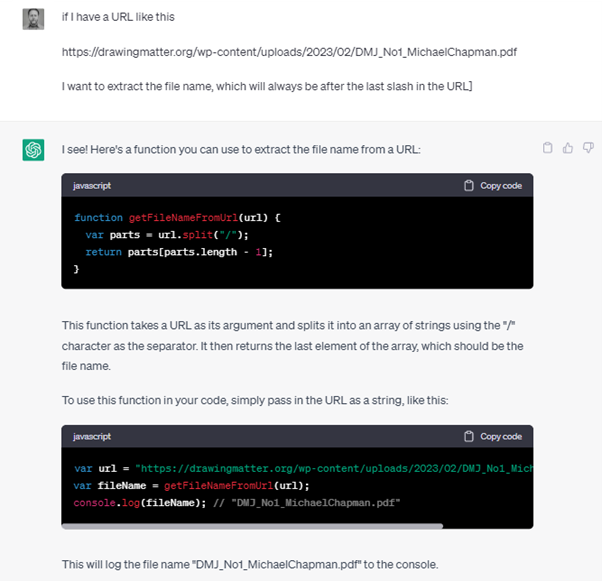
and just like that I have code that can be adapted for use within a Custom JS Variable which takes the Click URL as the input:
function()
{
  var this_url = {{Click URL}};
  var url_parts = this_url.split("/");
  return url_parts[url_parts.length - 1];
}
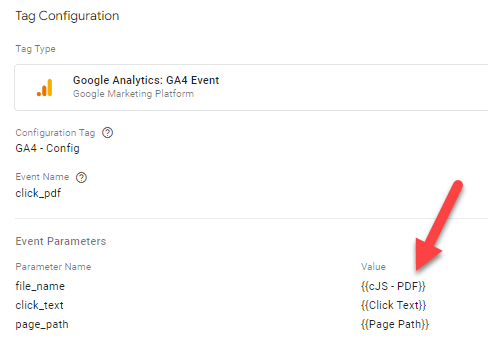
I adapted the output for a GTM Custom JavaScript variable using {{Click URL}} as the input and called the variable cJS – PDF.
I can then use the resulting value as a parameter in my GA4 event:
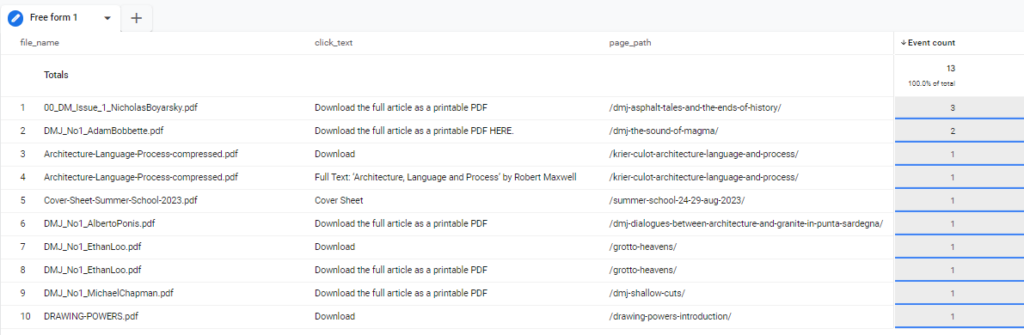
which makes for a much cleaner looking report:
Use ChatGPT to clean email and telephone click data
The same approach is useful for cleaning up other values before sending them to GA4. For example, if I’m tracking email or telephone link clicks, I might want the actual email address or telephone number in my reports rather than values beginning with mailto: or tel:.
For an email click, I asked ChatGPT to remove the mailto: prefix:
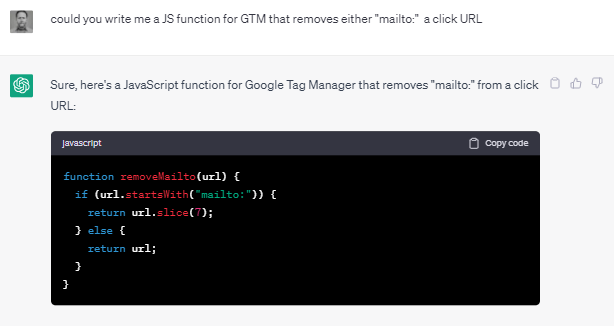
which is amended to:
function()
{
  var email_address = "{{Click URL}}";
  if (email_address.startsWith("mailto:")) {
    return email_address.slice(7);
  } else {
    return email_address;
  }
}
The same principle works for telephone links. This time I want to remove tel: from the Click URL:
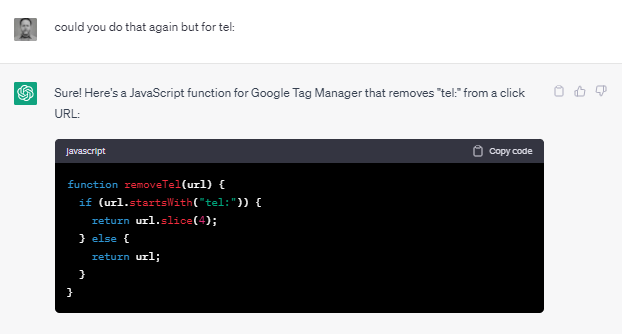
which is amended to:
function()
{
  var phone_number = "{{Click URL}}";
  if (phone_number.startsWith("tel:")) {
    return phone_number.slice(4);
  } else {
    return phone_number;
  }
}
Use ChatGPT to reformat a GTM variable
Another example came from tracking social share clicks. As well as the social platform and page path, I wanted to send the page title with the event.
On one site the H1 text was entirely uppercase, which wasn’t how I wanted it to appear in GA4. Rather than manually writing the JavaScript to reformat it, I asked ChatGPT to create the function:
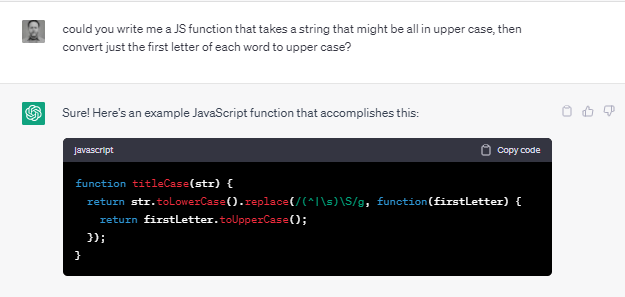
which is amended to:
function ()
{
  var this_h1 = {{h1.title}};
  return this_h1.toLowerCase().replace(/(^|\s)\S/g, function(firstLetter) {
    return firstLetter.toUpperCase();
  });
}
None of these are particularly complex JavaScript functions, and I could have written them myself with enough time. That’s not really the point.
ChatGPT gives me a quick starting point, while my knowledge of JavaScript, GTM and the tracking implementation lets me check the output, adapt it to use GTM variables and test that it works correctly.
Use ChatGPT to fix JavaScript errors in GTM
ChatGPT-generated JavaScript doesn’t always work first time, particularly when the code needs to run within Google Tag Manager.
If GTM returns an error, I can give ChatGPT the error message along with the code it generated and ask it to identify the problem and provide a corrected version. I still need to test the revised code rather than assume the second answer is correct.
For example, when I first asked ChatGPT to write the code for reformatting the uppercase and lowercase characters in the page title, it gave me the following:
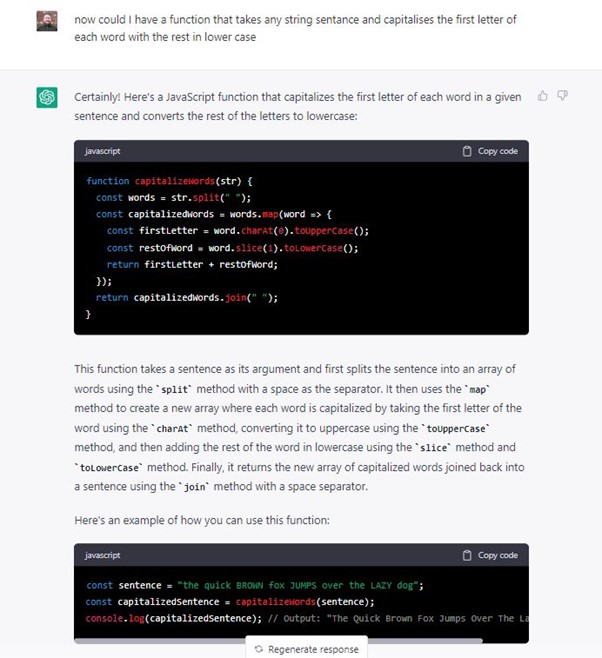
When I tried to preview the code in GTM I got the following error:
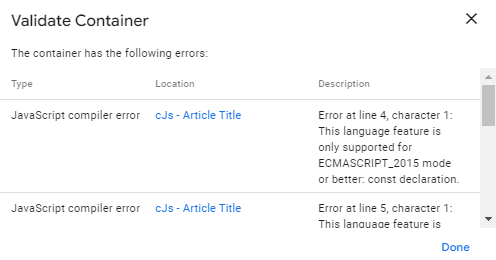
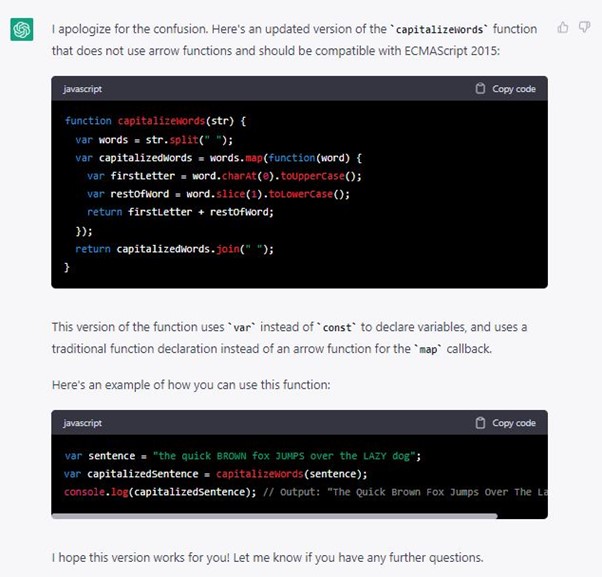
So I informed ChatGPT of this, it apologised, then provided updated code which worked:
Use ChatGPT to write regular expressions for GTM
I’ve worked with various programming languages over the years, including HTML, CSS, JavaScript, SQL and PHP.
However, I have NEVER got my head around RegEx. I can’t do it and tend to shy away as soon as my first attempt doesn’t work.
Not anymore though.
One of the custom events I create as part of my GA4 configurations is to track internal link clicks and identify whether the link was clicked in the header, main content or footer.
I do this my setting the click URL trigger to match the site domain so as not to confuse it for an external link click.
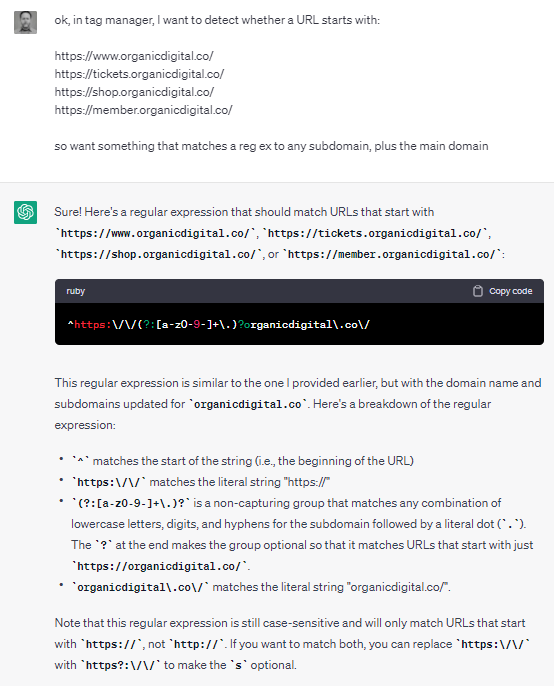
Recently, I was working on a site that had internal linking between the subdomains www, shop, member and tickets.
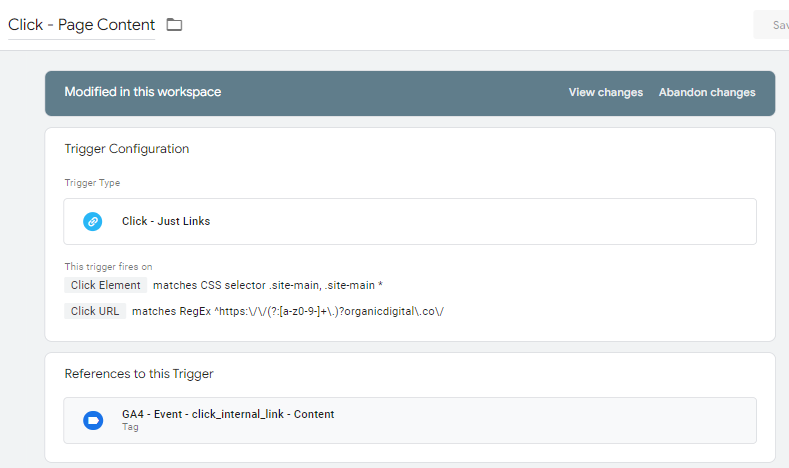
So I needed a trigger that would match the Click URL to any of those subdomains:
And it works a treat:
Use ChatGPT to create a Custom HTML listener in GTM
A more complex example came from a client who publishes a lot of useful content that they’re happy for visitors to copy and use elsewhere. They wanted to know how often content was being copied, which pages it was copied from and what text users were copying.
I’d never previously built this particular type of tracking in GTM, so rather than starting from scratch, I gave ChatGPT a detailed description of what I wanted the implementation to do.
This is where being specific with the prompt becomes particularly important. I needed the code to listen for copy events, capture the selected text and page information, and push the resulting data into the data layer so I could use it in GTM.
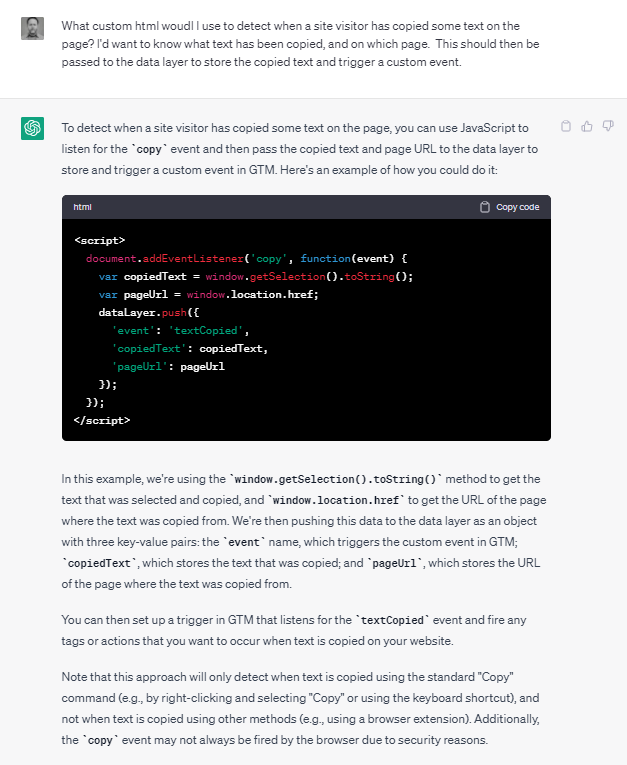
ChatGPT generated a listener that I could adapt and add to a Custom HTML tag:
<script>
  document.addEventListener('copy', function(event) {
    var copiedText = window.getSelection().toString();
    var pageUrl = window.location.href;
    dataLayer.push({
      'event': 'copy_text',
      'copiedText': copiedText,
      'pageUrl': {{Page Path}}
    });
  });
</script>
Once the listener pushes the copy_text event and associated values into the data layer, I can use those values within the rest of the GTM configuration.
I created the required Data Layer Variables, a Custom Event trigger for copy_text, and a GA4 event to send the data to Analytics.
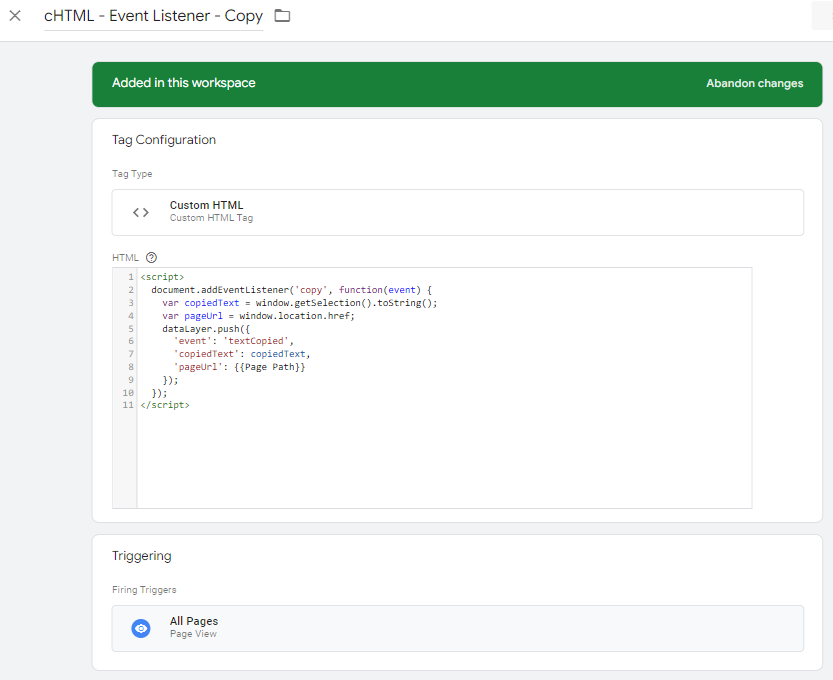
Then create variables to pull in the text from the data layer, and a custom event trigger that calls the GA4 Event:
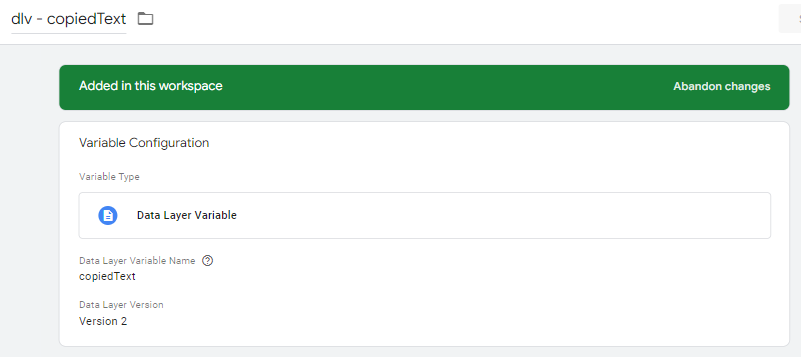

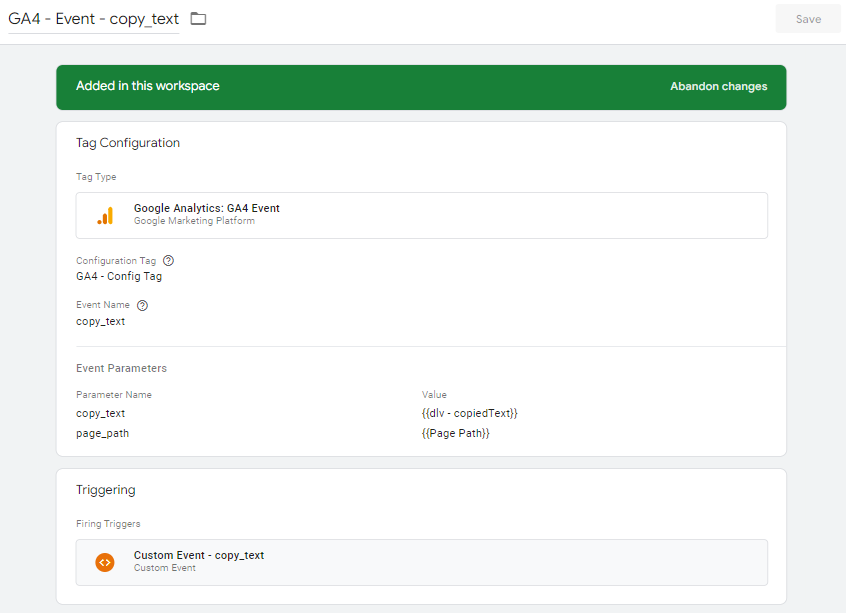
Which then fires as follows:

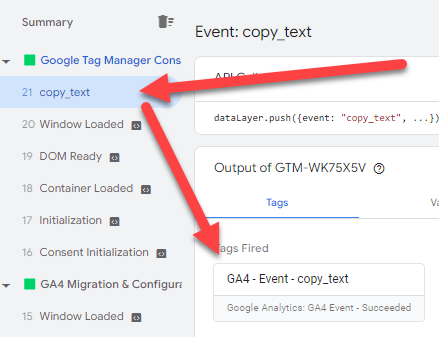
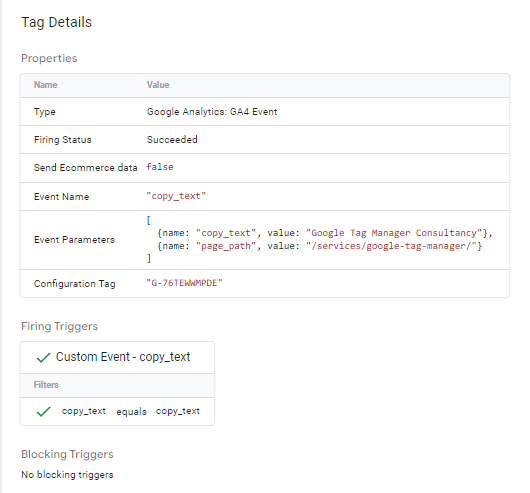
This is a good example of where I find AI particularly useful with GTM. I knew what I wanted to track and how I wanted the resulting data to work, but I didn’t already have the JavaScript listener to make it happen. ChatGPT helped bridge that gap, while GTM Preview mode allowed me to verify that the event and data were actually being captured correctly.
Should you use ChatGPT to write code for Google Tag Manager?
I’ve found ChatGPT particularly useful for Google Tag Manager tasks where I know what I want to achieve, but don’t necessarily want to spend time writing the JavaScript or regular expression from scratch.
The examples above cover several ways I’ve used it in real implementations: creating Custom JavaScript variables, fixing code that doesn’t work, writing regex and building a Custom HTML listener for more bespoke tracking requirements.
The key is not to blindly copy and paste whatever ChatGPT gives you into a live GTM container. Be specific about what you want, understand what the generated code is doing, adapt it where necessary, and test everything in GTM Preview mode before publishing.
For me, that’s where AI is most useful with GTM: it speeds up the coding part of the job without replacing the knowledge needed to design, implement and validate the tracking itself.
Have fun.

categories
- Analytics Insights
- Crawl Rate Insights
- Ecommerce SEO Insights
- International SEO Insights
- Keyword Research Insights
- Local SEO Insights
- Migrations Insights
- News Insights
- On Page SEO Insights
- Performance Analysis Insights
- SEO Audits Insights
- Site Speed Insights
- Structured Data Insights
- Tag Manager Insights
- Wordpress SEO Insights
latest posts
How To: Track GA4 AI Assistant Traffic, Including Historical Data

A Rough Guide To: LLMS.txt - What It Is & How To Create One

How To: Build SEO Content Hubs for Topical Authority

Case Study: Do Keywords in URLs Help SEO Rankings?

How To: Track Google Business Profile Traffic in GA4

get in touch
If you need some expert website optimisation and configuration, want to find out more, or even just have a question, fill in the form below as I will always be happy to help