Analytics - Tag Manager
Solved: Why Google Tag Manager Events Are Not Showing In Analytics


TL:DR
If an event works in Google Tag Manager Preview but isn’t appearing in GA4 for real users, check whether the GTM container version containing your changes is actually published.
That was the problem in my case: I had approval permissions rather than publish permissions, so my testing worked but the live site was still running an older container version.
If your container is definitely published, work through the checks below to establish whether the problem is with the GTM trigger, tag, GA4 property, consent configuration or GA4 reporting.
When GTM Events Work in Preview but Don’t Show in GA4
I recently ran into a particularly frustrating Google Tag Manager problem while working on a Google Tag Manager (GTM) and Google Analytics 4 (GA4) configuration project for a new website product launch.
The aim was to set up custom events and conversions that would track a user landing on the main website, clicking through to a subdomain and completing a sign-up process.
The setup wasn’t entirely straightforward.
The main site was WordPress, while the subdomain was a bespoke application built using React with an SPA (single-page application) architecture. Both were on the same top-level domain and already had Google Tag Manager and GA4 tracking in place.
I’d initially been working in a test environment before the new functionality was rolled out to the live site.
Everything worked.
The events fired correctly in GTM Preview. I could follow the journey through to conversion and see the events being tracked in GA4.
But once the changes were supposed to be live and real users started accessing the site, nothing was being tracked.
My first thought was that the React SPA was causing the problem. Tracking interactions and page changes on an SPA can require a more considered tracking configuration, including using History Change triggers in GTM to detect navigation that doesn’t result in a traditional page load.
So I checked the triggers. I tested different approaches. I went back through the implementation.
And I kept getting the same result:
Everything worked perfectly for me in testing, but nothing was being tracked for actual users.
That turned out to be the biggest clue.
The eventual cause was much simpler than the JavaScript or SPA problems I’d been investigating: the GTM container containing my changes wasn’t actually live.
I’d been given approval permissions rather than the permissions required to publish those changes.
Before getting to that discovery, though, it’s worth showing how I established that the tags and events themselves were working. It’s the same troubleshooting process I’d use as part of my analytics and tracking consultancy, and it can help narrow down why your own GTM events aren’t appearing in GA4.
How do I check whether my GTM event is actually firing?
The first thing to establish is whether the problem is in Google Tag Manager or further down the tracking chain.
Use GTM’s Preview mode to test the event and confirm that the expected trigger fires and the corresponding GA4 event tag runs.
In my case, this was exactly what I did. The tags and triggers behaved correctly in Preview, which initially suggested that the GTM configuration itself wasn’t the problem.
Once your tags and triggers are configured like this:

You then launch preview mode:

This opens Tag Assistant, where you can see what happens as you interact with the site, including which tags fire, and which don’t.
Tag Assistant shows a summary of the tags that have fired during your session. You can also select individual default and custom events to see exactly what fired at each point:

You can dig further into each event to inspect the variables available when it occurred:
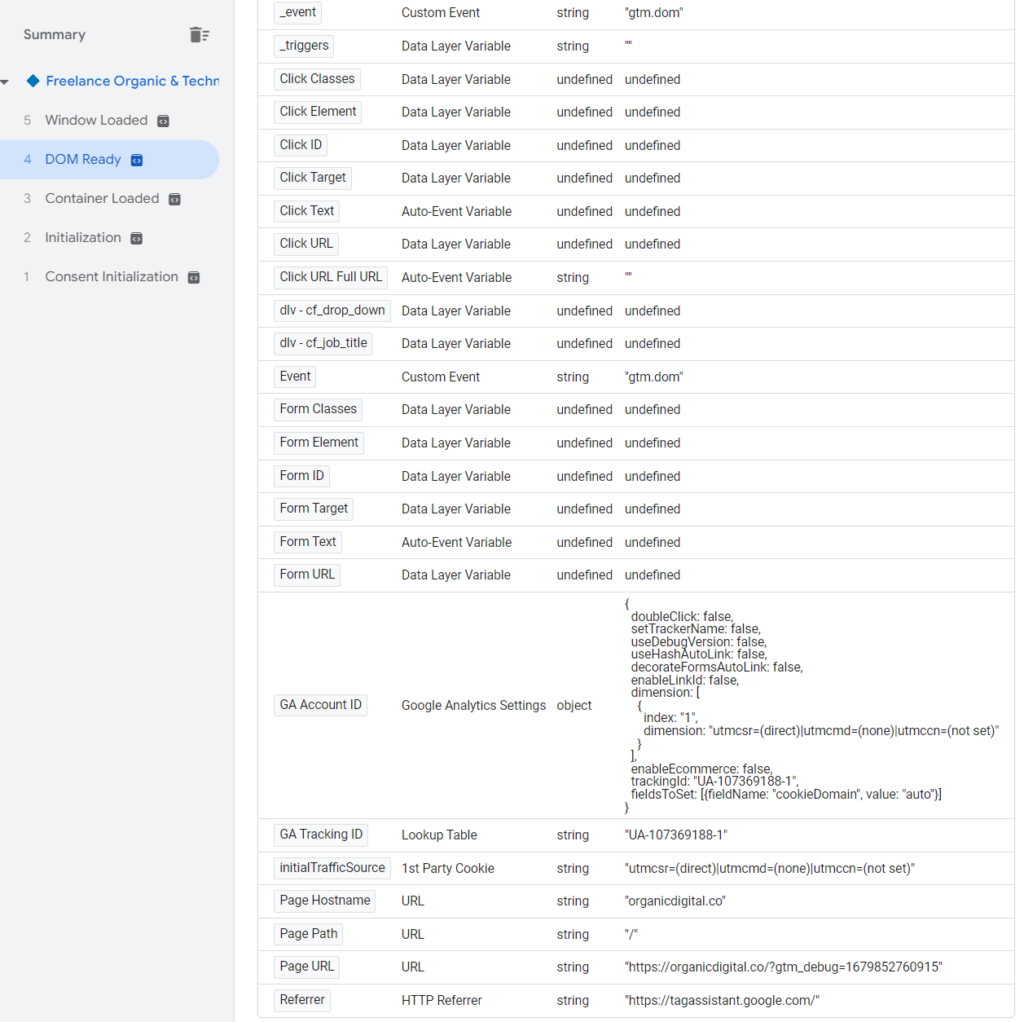
And the current state of the data layer:

In this example from my own site, I can see the page view firing alongside a LinkedIn pixel and some custom scripts.
I also have a GA4 event configured to track clicks on a specific group of links within the main content area.
When I click one of those links while using Preview mode, Tag Assistant shows the event occurring and the corresponding tag firing:

I can then select the tag itself to see why it fired and which values were passed:

At this point, everything is behaving as expected in GTM. The event fires, the trigger works and the expected values are being passed.
So the next question is: is GA4 actually receiving it?
How do I view Google Tag Manager events in Google Analytics?
Once you’ve confirmed that the event is firing correctly in GTM Preview, the next step is to check whether the event is reaching GA4.
There are two useful places to check this while troubleshooting: Realtime and DebugView.
They serve slightly different purposes, and in my case both helped confirm that the events themselves were configured correctly.
Check the event in GA4 Realtime
Once you’ve confirmed the event is firing in GTM Preview, check whether GA4 is receiving it.
Open Realtime in GA4 and trigger the event yourself. If the event appears here, you know GA4 is receiving data from the interaction rather than the problem simply being a GTM trigger that doesn’t fire.

In my example, I could see my homepage link-click event appearing in Realtime:

I use events like these to understand interactions that aren’t captured by page views alone. That can include internal link clicks, banner clicks and form submissions.
So far, so good: the event fired in GTM and GA4 was receiving it while I was testing.
Check the event in GA4 DebugView
DebugView gives you another way to inspect the events GA4 is receiving during a debugging session.
Rather than looking at activity from all recent users, DebugView lets you concentrate on events generated by devices or sessions with debug mode enabled. When testing through GTM Preview, this makes it particularly useful for following your own events as you trigger them.
You can access DebugView from your GA4 property:

When I launched the site through GTM Preview, I could then follow the events being sent during my debugging session:

Again, everything looked correct.
My tags fired in GTM Preview. The events appeared in GA4 while I was debugging. Yet when real users accessed the live site, those events weren’t being tracked.
That discrepancy was the important clue.
Why is my GTM event working in Preview but not for real users?
At this point, I’d established that the event itself worked. GTM could fire it and GA4 could receive it during testing.
So rather than continuing to change the tag or trigger, I needed to work out what was different between my Preview session and the version of the site being used by everyone else.
I’d initially suspected something more technical. Because part of the journey took place on a React SPA, I’d investigated whether JavaScript was interfering with the Analytics implementation.
But I was looking in the wrong place.
The problem turned out to be much simpler: the GTM container version I’d been testing wasn’t actually the version published on the live site.
My problem: I didn’t have GTM publish permissions
When I was added to the client’s GTM account, I’d been given Approve permissions rather than the permissions I needed to publish the container myself.
So I could create and edit the tags. I could test everything in Preview. I could see the events arriving in GA4 while debugging.
But the version I was testing wasn’t the version running on the live site.
FFS.
In my defence, I’d previously tended to be given the access needed to publish changes myself. What caught me out here was that nothing during the build and testing process made the problem particularly obvious.
I could make my changes, test them successfully and submit a new container version. From my perspective, everything looked like it had worked.
If you’re seeing the same behaviour, everything works in Preview but not for real users, check the permissions you’ve been given and, more importantly, which container version is actually published.
You can check your access under the user permissions for the GTM account and container:

How to check whether your GTM changes are actually live
Having confirmed your permissions, the next thing to check is whether the container version containing your changes is actually live.
This was the confusing part in my case. I could make changes, test them in Preview and submit a new container version. Nothing in that workflow had made it obvious to me that the version I’d been testing wasn’t the version being served to real users.

In approval mode, it looks like this:
You’d think they’d amend to button to read “submit for approval” or similar.
The real giveaway was the version history.
Every time I’d submitted my changes, a new version had been created. But when I looked more closely, the live version was still the same one that had been published before I’d started working on the project:

And that explained everything.
In GTM Preview: I was testing my newer workspace changes, so the events fired correctly.
In GA4 while debugging: I could see those test events arriving, so GA4 appeared to be working correctly.
For real users: the website was still loading the older published GTM container, which didn’t contain my new event tracking.
There wasn’t anything wrong with the event or its trigger, and there wasn’t an obscure React or JavaScript problem to solve.
The tracking I’d been testing simply hadn’t been published to the live site.
Fair to say, even after several years of working with GTM, every day is a school day.
If your GTM container is published, what else should you check?
Publish permissions were the problem in my case, but if you’ve confirmed that the correct GTM container version is live, there are a few other places I’d check.
The event doesn’t fire in GTM Preview: Start with the trigger conditions, variables and tag configuration. If GTM can’t fire the event during testing, GA4 isn’t the first place to look.
The event fires in GTM but doesn’t appear in GA4: Check that the tag is sending data to the correct GA4 property and Measurement ID, and use DebugView or Realtime to establish whether GA4 is receiving anything.
The event works for some users but not others: Check whether your cookie consent and Consent Mode configuration is affecting when analytics tags can run.
The event appears in Realtime but not in your standard reports: You’ve established that GA4 is receiving the event, so the problem is further down the chain. Check reporting/processing rather than continuing to change the GTM trigger.
The important thing is to troubleshoot in order:
Does the trigger occur → does the GTM tag fire → is the correct container live → does GA4 receive the event → does it appear in reporting?
Find the first point where that chain breaks and you’ll have a much better idea of where the problem actually is.
If you’re still unable to work out where your tracking is breaking, this is exactly the sort of problem I investigate as part of my analytics and tracking consultancy. I can audit the implementation across GTM, GA4 and consent configuration to identify what’s firing, what isn’t and where data is being lost.

categories
- Analytics Insights
- Crawl Rate Insights
- Ecommerce SEO Insights
- International SEO Insights
- Keyword Research Insights
- Local SEO Insights
- Migrations Insights
- News Insights
- On Page SEO Insights
- Performance Analysis Insights
- SEO Audits Insights
- Site Speed Insights
- Structured Data Insights
- Tag Manager Insights
- Wordpress SEO Insights
latest posts
How To: Track GA4 AI Assistant Traffic, Including Historical Data

A Rough Guide To: LLMS.txt - What It Is & How To Create One
How To: Build SEO Content Hubs for Topical Authority

Case Study: Do Keywords in URLs Help SEO Rankings?

How To: Track Google Business Profile Traffic in GA4

get in touch
If you need some expert website optimisation and configuration, want to find out more, or even just have a question, fill in the form below as I will always be happy to help